 Draw on a Map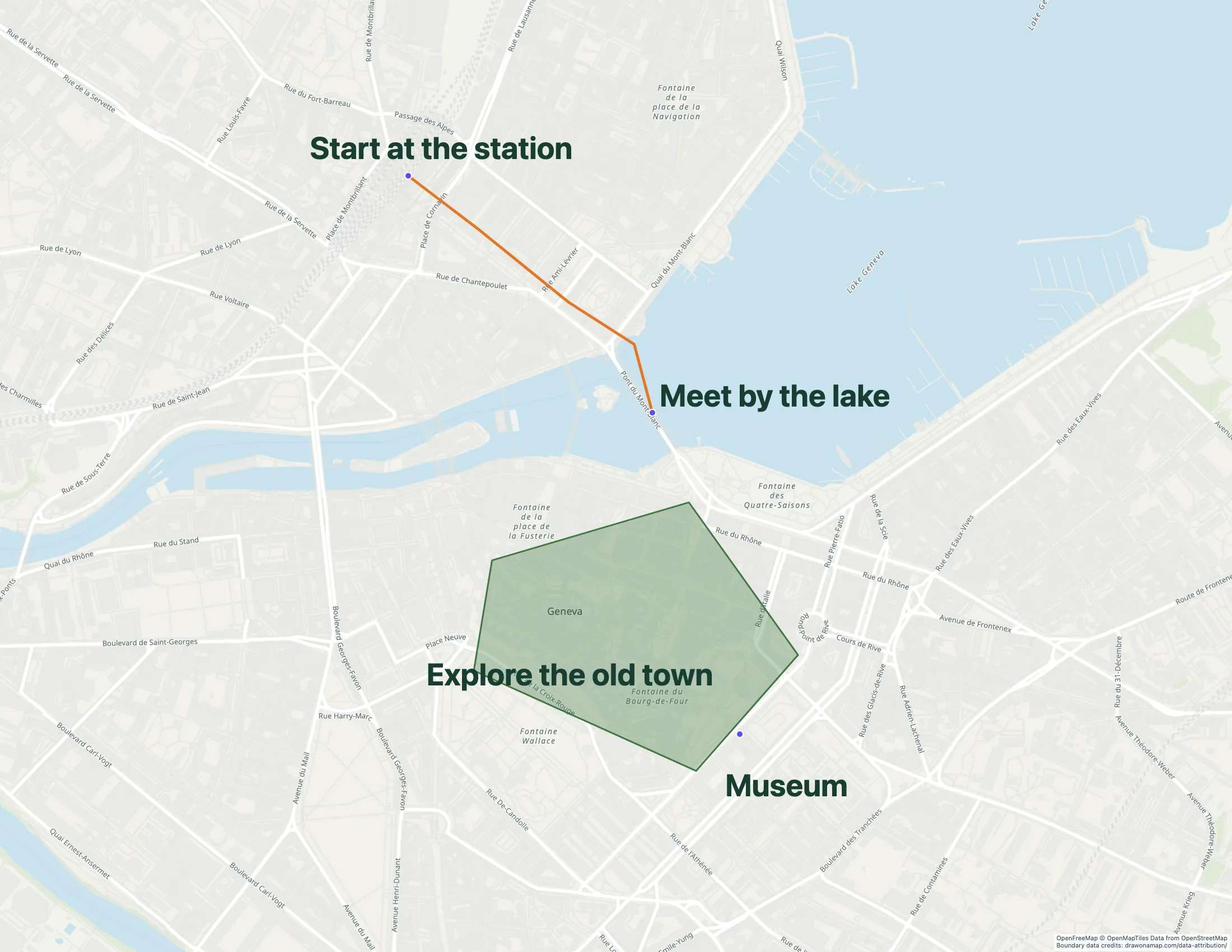
Routing apps pick the route they know. Sometimes you know a better one: a footpath, a gate, or the entrance around the back. Draw on a Map lets you trace that route by hand and send it as one link. It is free, and nobody needs an account.
The shortcut that started this map
When I was arranging apartment viewings near Geneva, visitors needed a short walk from the station. Google Maps sent them on a 36-minute route along a main road. The pedestrian connection I used was missing from those directions.
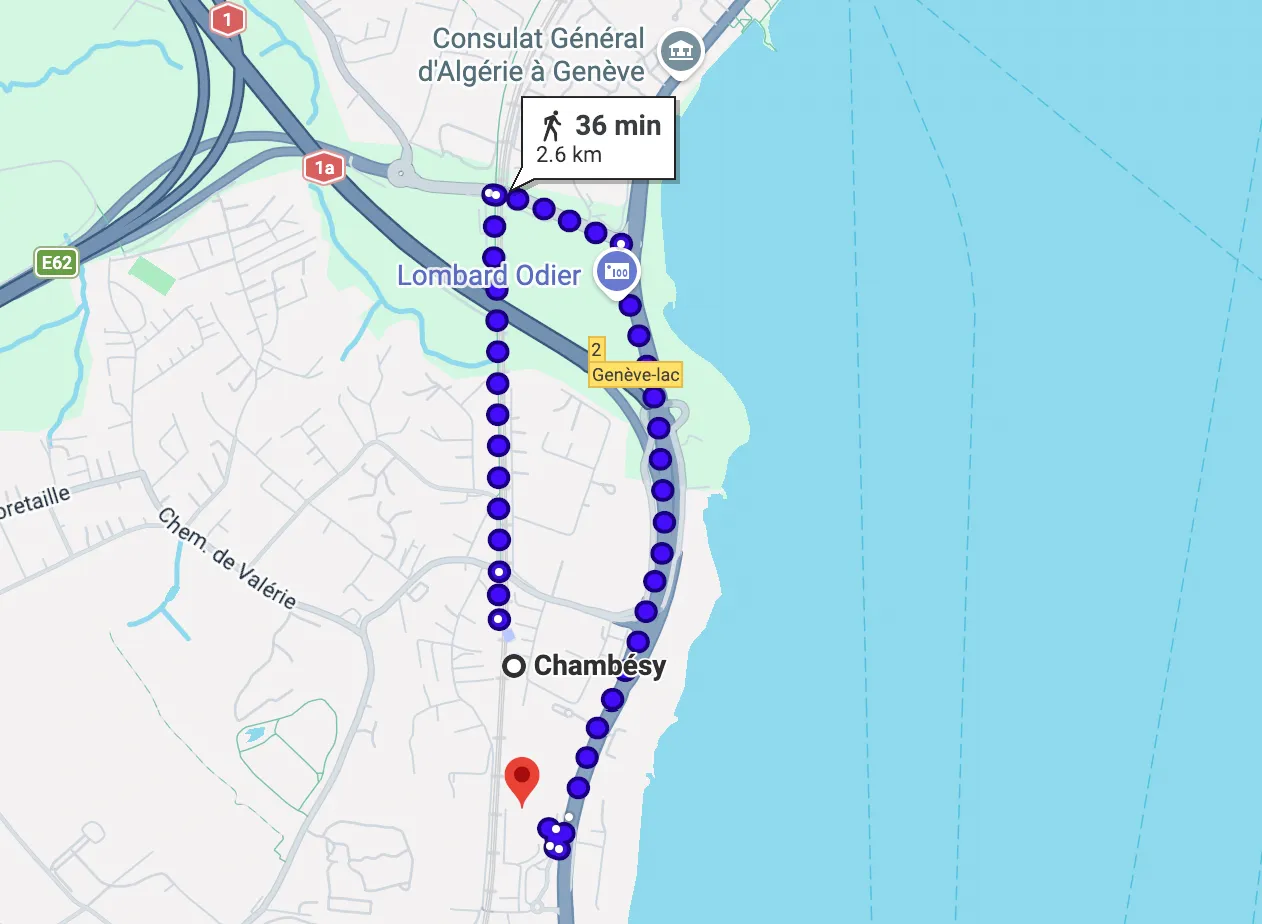
The directions sent visitors along the main road.
I needed to show people which path to take. A line on the map made the connection clear.
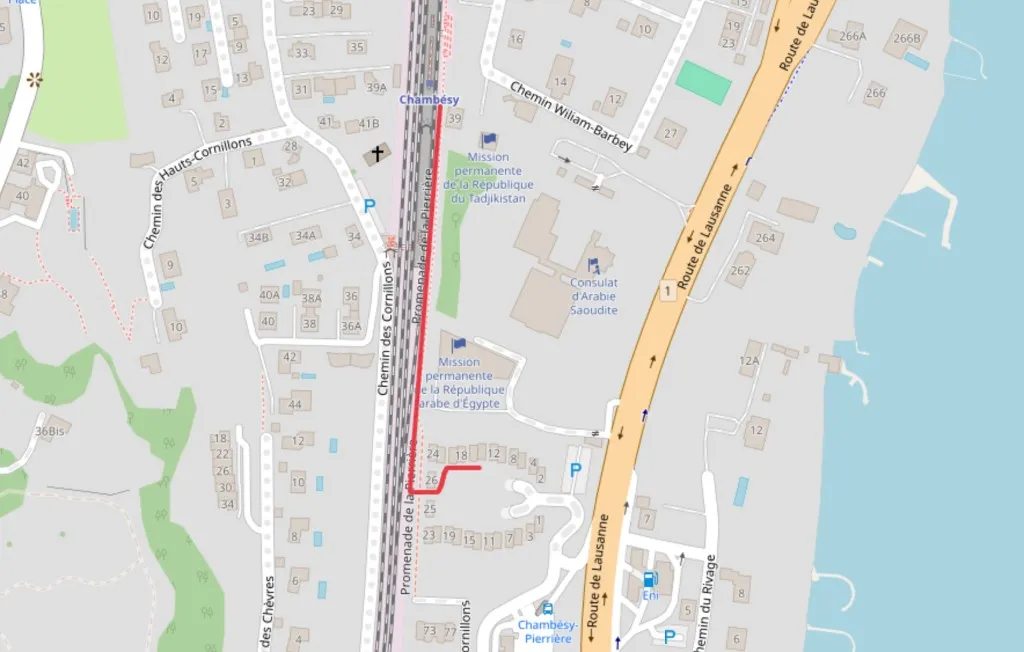
The red line follows the railway from Chambésy station, then turns towards the entrance.
My partner and I built Draw on a Map for this kind of task. You can draw a line, add an arrow, and send the map without creating an account.
How to draw clear walking directions
- Open Draw on a Map and search for your destination.
- Zoom in until both the starting point and the destination are visible. Keep nearby streets and landmarks in view so your visitor can find their position.
- Select the line or freehand tool. Trace the walking route from the starting point to the entrance.
- Choose a color that is easy to see against the map. Add an arrow at a small path or entrance that your visitor could miss.
- Click Share and copy the link.
- Paste the link into WhatsApp, Telegram, email, or SMS with your meeting details.
Your visitor can open the map without an account or an app installation. You can send the same link to a group.
A link shared from an unsaved map is a fixed copy, so if you change the route, you need to send a new link. If you select Save to account before you share, the link always shows your latest saved version.
When to use a drawn walking route
A drawn route is useful for a passage with no address, a meeting point inside a park, or a specific entrance on a campus. It also helps when you want visitors to follow a path you know instead of a suggested route.
Keep the drawing focused on the part that needs explanation. For a station pickup, show the exit, the walking path, and the meeting point. For a building visit, end the line at the entrance instead of the center of the building.
The shared map shows your drawing. It does not provide turn-by-turn navigation or check whether a path is open. Draw a route you know visitors can use.
Draw and share your walking route.
Related articles
- How to draw on Google Maps covers Google My Maps and KML or KMZ import.
- Scribble Maps alternative compares tools for map drawing and sharing.
 Maptive
 Scribble Maps