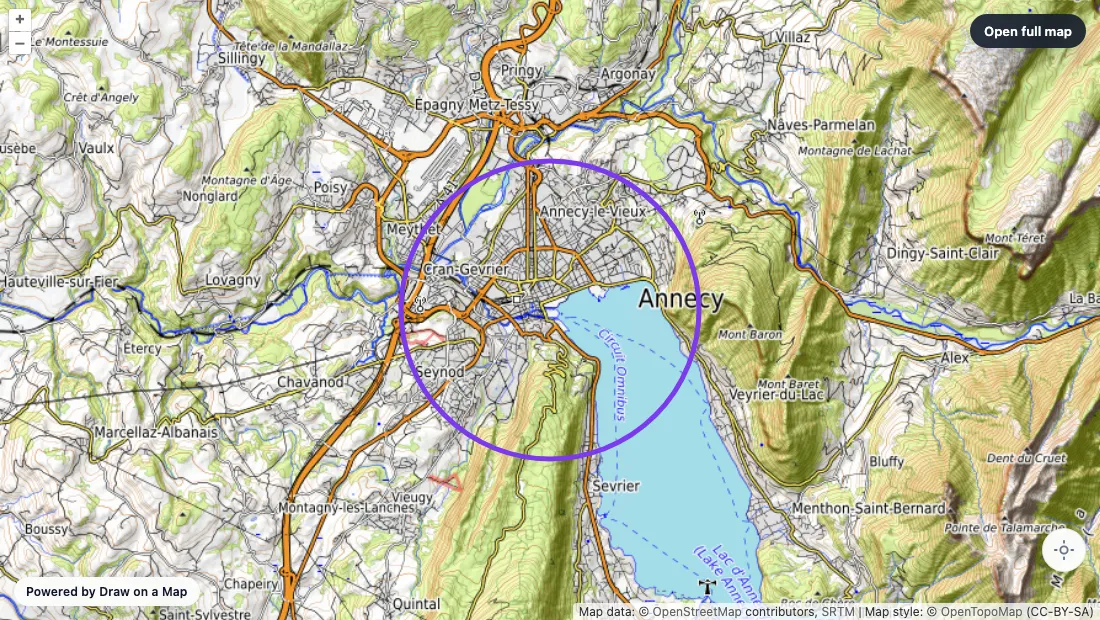
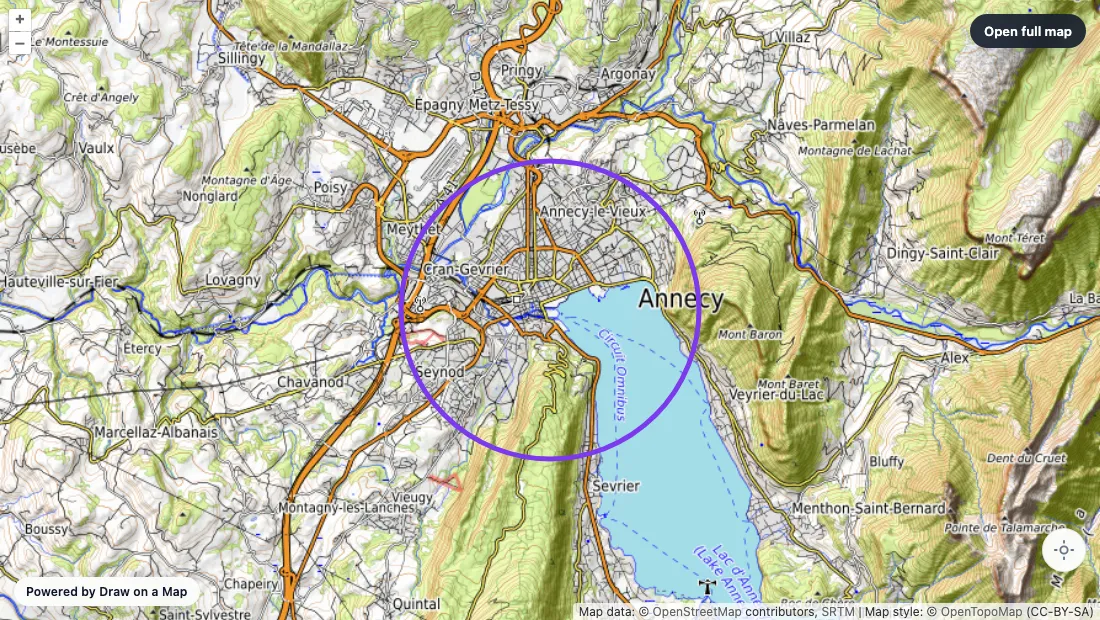
Need to show an area around a point? A circle is useful for a delivery zone, a search area, or an event area. It shows a straight-line radius. It does not check addresses, calculate a walking route, or define a legal boundary.
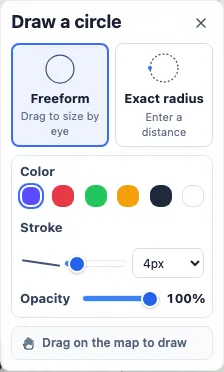
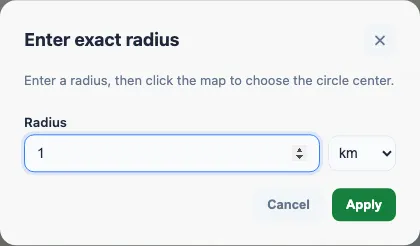
Draw on a Map includes a Circle tool for freeform circles anywhere in the world without an account. Drag from one edge of the circle to the other. For a measured distance, use the Map Radius Tool and enter an exact radius. The map base is OpenStreetMap, a community-maintained map with global coverage.
How to Draw a Circle on a Map (Step by Step)
- Open drawonamap.com: no signup, no install.
- Search for your location using the search bar, or navigate manually.
- Select the Circle tool from the toolbar (the circle icon). This is for a freeform circle, not an exact measurement.
- Click and drag on the map. The two points define the diameter of the circle.
- Release to finish the circle.
- Click Share to copy a link that shows your circle to anyone.
That’s it: no project setup is required.
What Can You Use Map Circles For?
Delivery and Service Zones
Draw a circle around your location to show an approximate service area. Customers can compare their location with the circle visually.
For a website version, use the Service Area Widget to let customers type an address and see whether you cover it.
Neighborhood and Search Area Boundaries
Looking for an apartment? Draw a circle around your workplace to show a straight-line search area. Share it with a real estate agent or compare it with listings manually.
Event Perimeters
Planning an outdoor event? Draw a circle around the venue to show attendees the area of the event, parking zones, or a no-entry perimeter.
Safety and Evacuation Zones
A circle can help a team discuss an approximate distance from a hazard point. It is not an official hazard or evacuation boundary. Use approved local guidance and professional planning tools for safety decisions.
Circular Zones Around Properties and Points
Mark circular areas around a property, a well, a tower, or any point of interest. This is not a surveyed or legal property boundary. Use multiple circles in different colors to show nested zones: for example, a 500m inner zone in red, a 1km middle zone in orange, and a 2km outer zone in blue.
Travel Planning
Traveling to a new city? Draw a circle around your hotel to see which attractions fall within a straight-line radius. Use the Route Planner when you need walking or driving routes.
Tips for Drawing Circles on Maps
Use different colors for multiple circles. If you need to show several zones: for example, a 1km and a 3km radius: use different colors so they’re easy to distinguish. Red for the inner zone, blue for the outer zone is a common convention.
Adjust the brush size for visibility. A thicker stroke makes the circle easier to see when zoomed out. Thin strokes are better for precise boundary work at high zoom levels.
Combine with other tools. Draw a circle to mark a zone, then use the freehand pen or arrows to annotate it. Use the text tool to add a label. The shared link captures everything.
Undo is Ctrl+Z. If your circle lands in the wrong spot, just undo and try again.
How Is This Different from Google My Maps?
Google My Maps lets you draw shapes and requires a Google account to create a map. Draw on a Map requires no account: open the page, draw your circle, and share the link. If you’re comparing annotation tools more broadly, see our Scribble Maps alternative guide.
The standard share link encodes the drawing in the URL, so it does not need a saved-map account. Share the link before you close the page if you need to reopen the drawing later.
Frequently Asked Questions
Can I draw multiple circles on the same map? Yes. Draw as many circles as you need in as many colors as you want. All of them are captured in the shared link.
Can I draw an exact radius: for example, exactly 1km? Use the Map Radius Tool to choose Enter exact radius, type a distance in kilometers or miles, and click the map to place the center. Exact radius circles are free and require no account.
Does the circle stay on the map after I close the browser? Your drawing is stored in the shared URL, not on a server. If you share the link before closing, anyone can reopen it. If you close without sharing, the drawing is gone: so always share first.
Can I share the circle on WhatsApp or Telegram? Yes. Click Share to copy the link, then paste it anywhere: WhatsApp, Telegram, email, Slack, a forum post. The recipient opens the link and sees your circle immediately.
Start Drawing
Open the draw circle on map tool for a freeform circle, or the map radius tool for an exact distance. Both work without an account.
Other tools on Draw on a Map:
- Service Area Widget: add a “Do you service my address?” checker to your website
- Distance between two addresses: measure straight-line distance in km and miles
- Route planner: plan multi-stop driving routes
Related articles:
- Draw on Google Maps alternative: when a dedicated annotation tool is better than Google
- Embed a map on your website: share custom routes and circles as an iframe