 Draw on a Map
To make a printable map, draw your route and marker on the map, check that the labels are readable, and then download a PDF for paper or a PNG for a slide. The preview lets you check the result before you download.
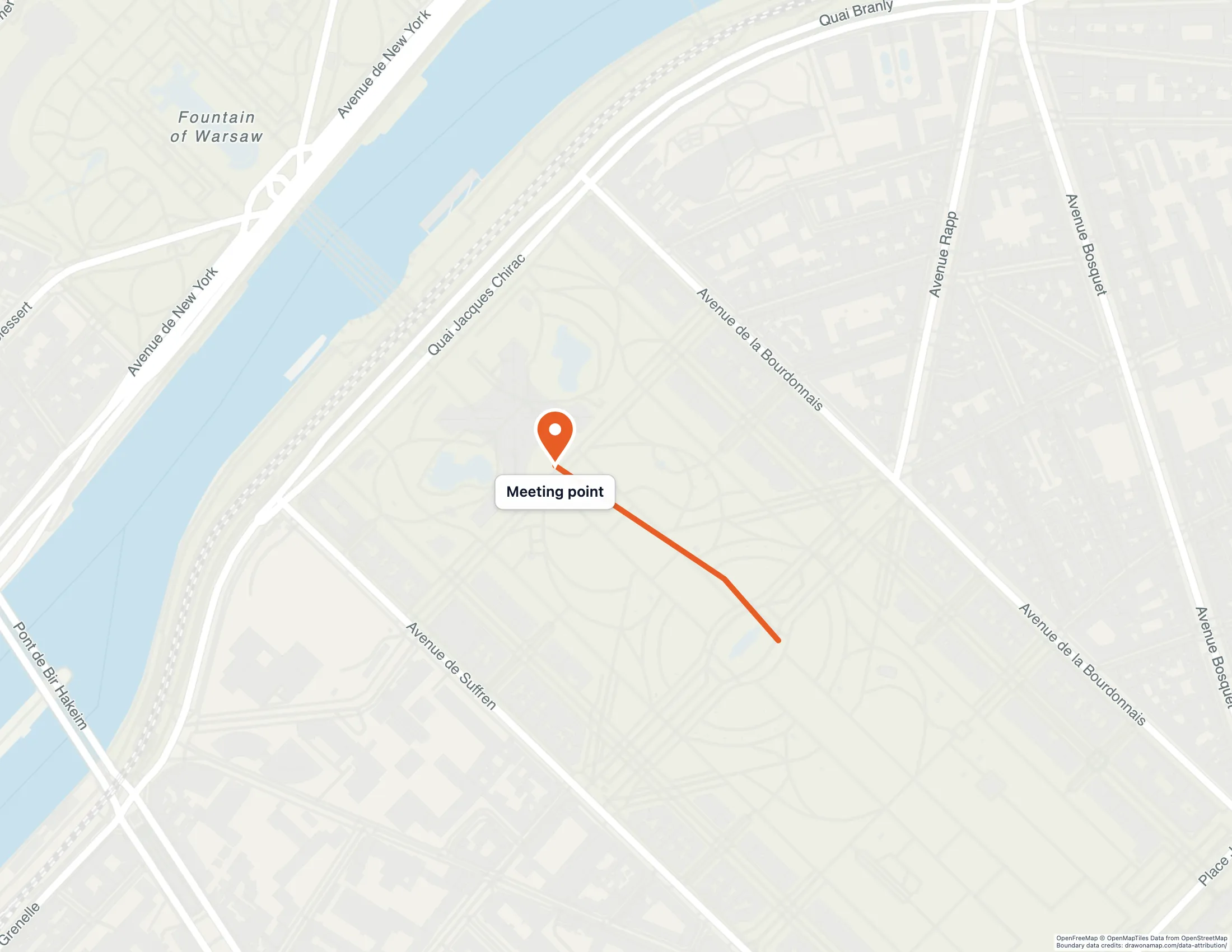
Here is a worked example. Suppose you are organizing a group visit in Paris and want everyone to meet at the Eiffel Tower. You want a handout that shows the meeting point and an approach to it. The approach in this example is illustrative, so choose a route you know is open to walkers for your own map.
Draw the route and the meeting point
Open the map and zoom to the area around the Eiffel Tower. Use the line tool to draw the approach, ending at the tower. Then add a marker at the exact spot where the group will gather and give it a short label such as “Meeting point.” The post on sharing custom walking directions covers line drawing and labeling in more detail.
If your map has several drawings, you can select a drawing and choose Add to legend to explain it. This step is optional, and a single route with one marker does not need a legend.
Check that the labels are readable
Before you download, look at the map at the size people will see it. A printed page and a projected slide both shrink small text, so confirm that your marker label and street names are still easy to read. If a label is crowded, shorten it, change the map area in the preview, or adjust the text size.
Download a PDF for a handout
Choose Download, then Print or save PDF. The options panel opens directly, and you can fill in these fields:
- Document title and Subtitle or date, for example “Meeting point: Eiffel Tower” and “Saturday, 14 November.”
- Paper size, to match the paper you will print on.
- Map area under More options, where Current view keeps the area you see in the editor and adds map around the edges to fit the page, and Fit visible drawings frames your route and marker automatically.
The preview shows the page as it will be saved. For this example, Fit visible drawings keeps the whole route on the page. When the preview looks right, choose Continue to download.
Download a PNG for a slide
For a presentation, choose Download, then Image. An export offer appears, and Customize export lets you set the same kind of options before you continue. Insert the saved PNG into your slide as a picture and leave room around it for your own text.
Choose a free or paid download
A free download includes a Draw on a Map watermark, which is fine for a map you are using yourself or sharing informally. If the map is going to a group, a client, or a slide deck, you may prefer a clean file. A one-time export or Pro removes the watermark. Pro also adds satellite maps, which you can read about in how to draw on a satellite map. Credits for the map provider remain on every download.
Frequently asked questions
Do free downloads include a watermark?
Yes. Free downloads carry a Draw on a Map watermark. A one-time export or Pro removes that watermark. Credits for the map provider stay on the map.
Should I choose PDF or PNG?
Choose PDF for a page you want to print or hand out. Choose PNG when you want to place the map on a slide or in a document as a picture.